The AirOps Claude Connector lets teams pipe brand context, workflow outputs, and AI visibility data directly into Claude through MCP.
What is AirOps Claude Connector?
The AirOps Claude Connector brings your Answer Engine Optimization (AEO) analytics directly into Claude conversations. Query your AirOps performance data (brand visibility metrics, citation tracking, and AI search rankings) without leaving Claude. Ask questions like "Show me my top-performing pages in AI search" or "Which competitors are gaining citations?" and Claude retrieves real-time insights from your AirOps account.
What it can access:
- AI Search Visibility data from workspaces
- Page360 data from workspaces
- Brand context from workspaces
- DataForSEO + Semrush (keywords, backlinks, domain metrics, competitor data)
- Real-time SERPs (Google, Bing, YouTube, and more)
- Content analysis (page scraping, topical strength, content gap detection)
What you can do with it:
- Build AI and traditional search strategies
- Create customer usage reports
- Generate renewal and expansion ideas
- Research prospects for outreach
- Run Page360 queries
How to get started
Connecting Claude to AirOps
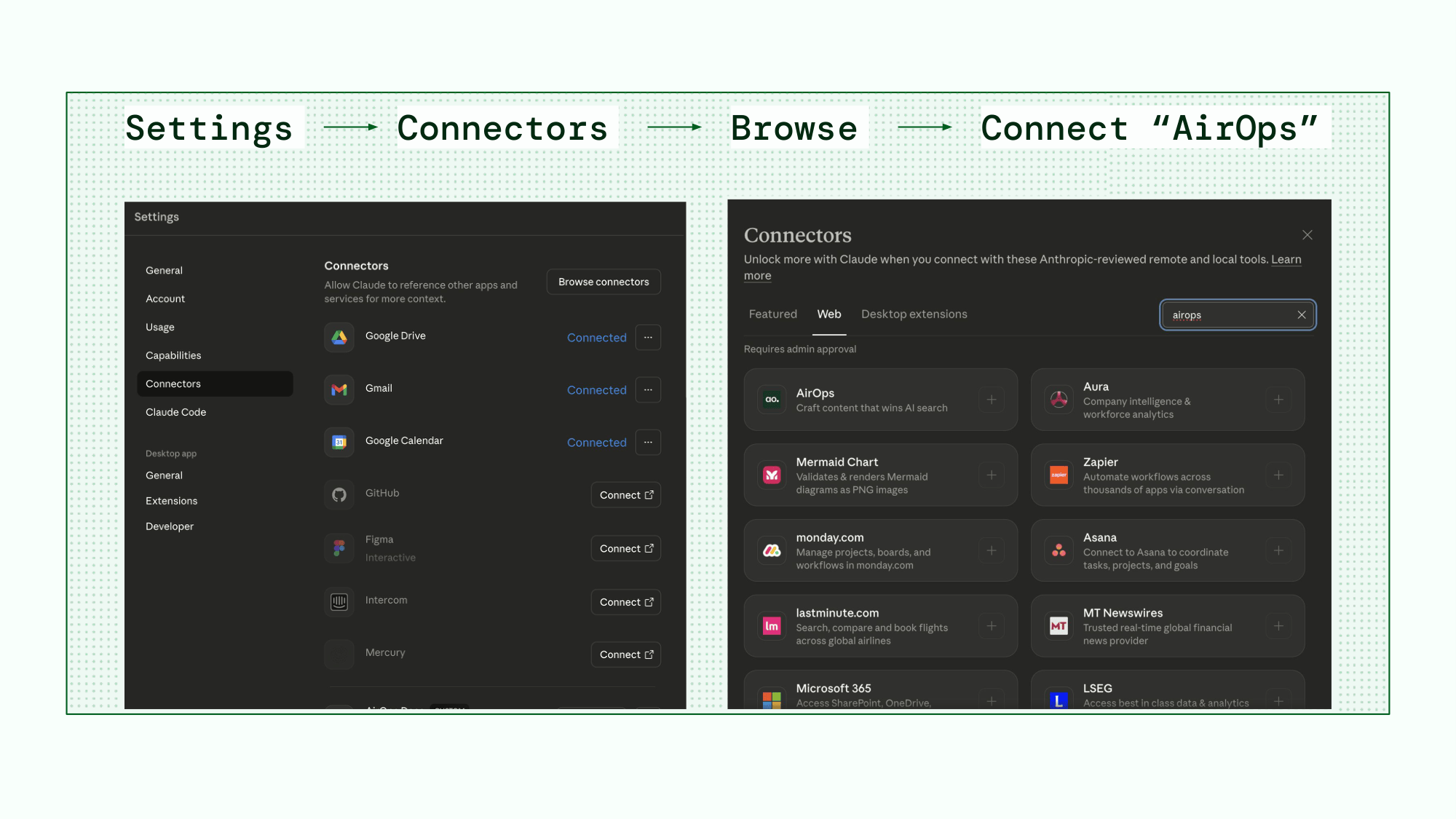
Connect AirOps to Claude in seconds. From any chat, click the "+" button, select "Manage Connectors," search for AirOps, and sign in with your account.
You can also access connectors through Settings → Connectors → Browse connectors → Connect "AirOps".
Step-by-step setup instructions below.
Option A: From Chat
- Open Claude (web or desktop)
- Click the "+" button (lower left of chat)
- Select "Manage Connectors"
- Search for "AirOps"
- Click Connect
- Sign in with your AirOps account (OAuth)
Option B: From Settings
- Go to Settings → Connectors
- Click "Browse connectors"
- Search for "AirOps"
- Click Connect
- Sign in with your AirOps account (OAuth)
Once connected, AirOps tools will be available in your conversations. You can manage your connection anytime from Settings → Connectors.
Note: Mobile users can use connected tools but cannot browse the Connector directory. Connect from web or desktop first.
AirOps Claude Connector Use Cases
1. Explore your data with rich responses where you work
The AirOps Connector supports Interactive Apps in Claude, enabling direct visualization of your AEO data within conversations
Ask Claude:
- "Show me my top 10 pages by traffic change this month."
- "Show me my mention rate trend over the last 60 days."
- "Compare my citation rate against my top 3 competitors."
- "What's my share of voice by AI provider?"
Requirements:
- Claude web or desktop (not mobile)
- Pro, Max, Team, or Enterprise plan
- Active AirOps Connector connection
If visualizations don't appear, verify your setup or explicitly request a chart. If issues persist, try reconnecting the AirOps Connector.
2. Create rich reports and export to other tools (e.g. Notion)
Now that you understand how the AirOps MCP interactive app works, test these prompts and share results to Notion.
2a. Check your AI visibility
Ask Claude:
- "Build me an executive summary of January's performance with trend charts."
- "How is [brand name] performing in AI search?"
- "What's my mention rate and citation rate over the last 30 days?"
- "Show me my AI visibility trends for the past 2 months."
Claude will query your AEO analytics and show you key metrics like mention rate, citation rate, share of voice, and sentiment.
2b. Compare performance against competitors
Ask Claude:
- "How do I compare to my competitors in AI search?"
- "What's my share of voice vs [competitor name]?"
- "Which competitors are getting more AI citations than me?"
Claude will show you a competitive breakdown with share of voice, mention rates, and citation rates for each competitor in your Brand Kit.
2c. Track performance across AI providers
Ask Claude:
- "How do I perform on ChatGPT vs Perplexity vs Gemini?"
- "Which AI provider mentions my brand the most?"
- "Compare my citation rate across AI platforms."
Claude will break down your performance by provider so you can see where you're strongest and where to focus.
2d. Export your insights
After getting insights from Claude, create external deliverables (if you have other MCP connectors like Notion connected):
Ask Claude:
- "Create a Notion page breaking down our AI visibility by topic area."
- "Summarize this in a format I can paste into a slide deck."
You can also use the AirOps Report link to share directly, or screenshot the data Claude provides.
3. Create and launch strategies with AirOps Grids
You now have complete visibility into your AI performance and page-level data. Feeling overwhelmed? Identify your highest-priority opportunities and use AirOps Grids to optimize pages at scale.
What is AirOps Grid?
AirOps Grids are workflow tools that turn AEO insights into batch optimization tasks. Claude creates Grids pre-populated with your selected pages, ready for you to run Power Agents and optimize content at scale directly in AirOps.
3a. Find prompts where your brand isn't mentioned
Ask Claude:
- "Find high-volume prompts where my brand isn't mentioned."
- "What AI questions should I be ranking for but I'm not?"
- "Show me prompt opportunities."
Claude will surface prompts in your topic areas where your brand isn't being cited. These are opportunities to optimize your content.
3b. Track which prompts cite specific URLs
Ask Claude:
- "Which AI questions cite [URL]?"
- "What prompts are driving citations to my pricing page?"
- "Show me the AI questions that reference my blog post about [topic]."
Claude will surface prompts in your topic areas where your brand isn't being cited. These are opportunities to optimize your content.
3c. Create action AirOps Grids to optimize pages
Ask Claude:
- "Create a content refresh grid for my top 20 declining pages."
- "Build a grid of competitor citations we should target for outreach."
- "I want to take action on these opportunities."
Claude will create an action Grid in AirOps with your selected pages, ready for you to run Power Agents and optimize your content. You'll get a direct link to the Grid in AirOps.
4. Build anything: Limitless tools and workflows
This is where data becomes strategy. With the AirOps Claude connector, you can build any internal tool or workflow you need.
Pull insights, automate decisions, and drive real business impact without limitations.
More resources
For complete documentation on the AirOps Claude Connector, visit the AirOps MCP documentation.
FAQ
1. What is the AirOps Claude Connector?
The AirOps Claude Connector lets you access your AEO (Answer Engine Optimization) data directly from Claude conversations. Instead of switching between Claude and the AirOps dashboard, you can ask Claude questions like "How is my brand performing in AI search?" and get instant insights from your AirOps data.
The AirOps Connector is available in Claude's Connectors Directory. You can find it by clicking "Search and tools" in your chat and selecting "Add connectors," or by going to Settings → Connectors → Browse connectors. Search for "AirOps," click Connect, and authenticate with your AirOps account.
2. What can I do with AirOps in Claude?
With the Connector, you can:
- Monitor AI visibility - Check your brand's mention rate, citation rate, and share of voice
- Analyze competitors - See how you compare to competitors across AI platforms
- Find opportunities - Discover pages losing AI citations or close to ranking
- Create reports - Generate and save reports for stakeholders
- Track by provider - Compare performance across ChatGPT, Perplexity, Gemini, and more
- Explore prompts - Find AI questions where your brand is or isn't being mentioned
- Access brand guidelines - Pull your brand voice, tone, and writing style
3. What's the difference between the Claude Connector and MCP?
Claude Connector is the native AirOps integration in Claude's Connectors Directory. It offers:
- One-click setup - No configuration or commands needed
- Interactive Apps - Renders charts and visualizations directly in conversations
- Seamless authentication - OAuth flow managed by Claude
- Full feature support - Access to all AirOps tools and capabilities
4. Which Claude apps support AirOps?
AirOps works on Claude Web (claude.ai) and Claude Desktop (Mac/Windows) through the Claude Connector. Both support Interactive Apps, so you'll see charts and visualizations directly in your conversations. Setup is one-click via Settings → Connectors.
Claude Code (CLI) supports AirOps through MCP using the Claude MCP add command, but Interactive Apps are not available in the command-line environment. You'll get text-based tool responses instead of visualizations.
5. What AirOps plan do I need?
The Claude Connector is available on any AirOps plan with AEO enabled. You need at least one Brand Kit configured with AEO data to use the connector.
6. What Claude plan do I need?
The Claude Connector requires a Claude Pro, Team, or Enterprise plan. The free Claude plan does not support third-party integrations.
Get the latest on AI content & marketing
